

7/21/26About 4 min
Fanpage posts from crawled source content
Purpose
Pull posts from an external source (crawl) → create Posts on the Management Website → let the fanpage publish automatically on schedule. The whole chain uses the same hashtag so you can trace the source post, the FB post created from it, and which fanpage will publish it.
Summary flow:
- Source crawlers pull content.
- Create Auto Posts turns source posts into Posts (FB posts).
- Fanpage post schedule picks posts matching the hashtag and creates publish tasks.
- The desktop app performs the publish.
Do not confuse two “auto” features
- Auto Posts > Create Auto Posts = source posts → create Posts on the website.
- Fanpage post schedule (from the Fanpages screen) = Posts → create publish tasks for the page.
This is not Automation settings > AI Posts. For AI-drafted content then fanpage publishing, see Automatic fanpage posting.
One hashtag across the chain (required)
Pick one hashtag (for example a product or campaign theme) and attach that same hashtag at every step:
| Step | Why attach the hashtag |
|---|---|
| Data > Hashtags | Create / choose the hashtag used end-to-end |
| Source crawlers | Tag the crawler so source posts belong to that theme |
| Source posts | Filter / review by hashtag |
| Create Auto Posts | Output target / hashtags → FB posts carry the same hashtag |
| Facebook > Fanpages | Fanpage hashtags → the schedule picks matching posts |
If hashtags diverge between steps, the fanpage will not receive the right posts from the source.
Before you start
- Ready Facebook accounts and correct browser profiles (needed for crawl / publish on the machine).
- The source URL you want to crawl (platforms supported on the form).
- Fanpages you are allowed to operate.
- The desktop app will be connected and running automation when crawl or publish must run for real.
Menus on the Management Website
| Step | Menu | Main work |
|---|---|---|
| 0 | Data > Hashtags | Create / choose the hashtag |
| 1 | Auto Posts > Source crawlers | Configure crawler, attach hashtag, link accounts |
| 2 | Auto Posts > Source posts | Review / filter by hashtag; approve when required |
| 3 | Auto Posts > Create Auto Posts | Workflow: source → FB Posts |
| 4 | Data > Posts | Check generated posts (optional view original source) |
| 5 | Facebook > Fanpages | Attach hashtag; open Fanpage post schedule |
| 6 | Facebook > Tasks + machine automation | Monitor and publish |
Steps
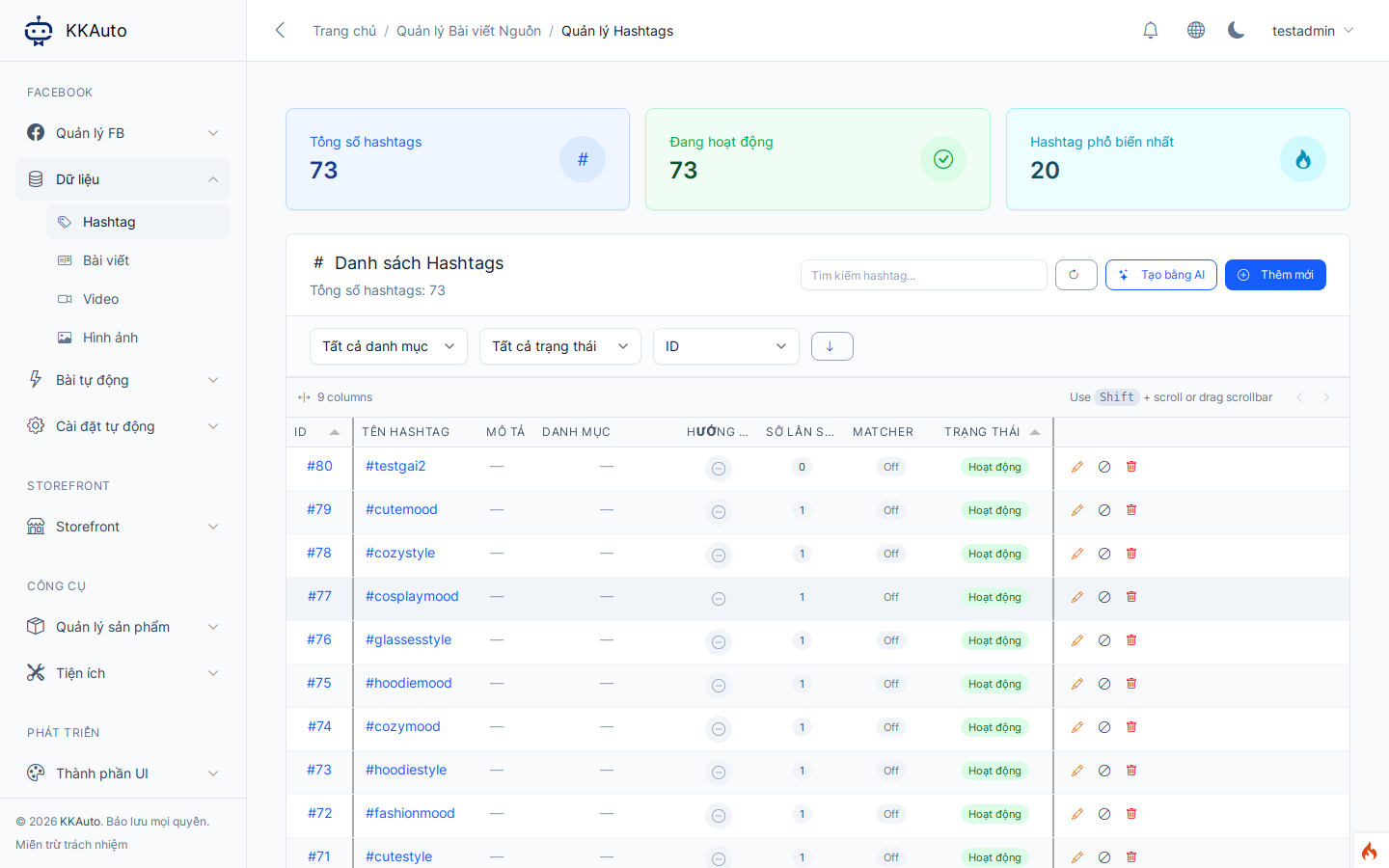
0. Prepare the hashtag
- Open Data > Hashtags.
- Create or select the hashtag for the entire chain (remember the exact name).
1. Source crawlers
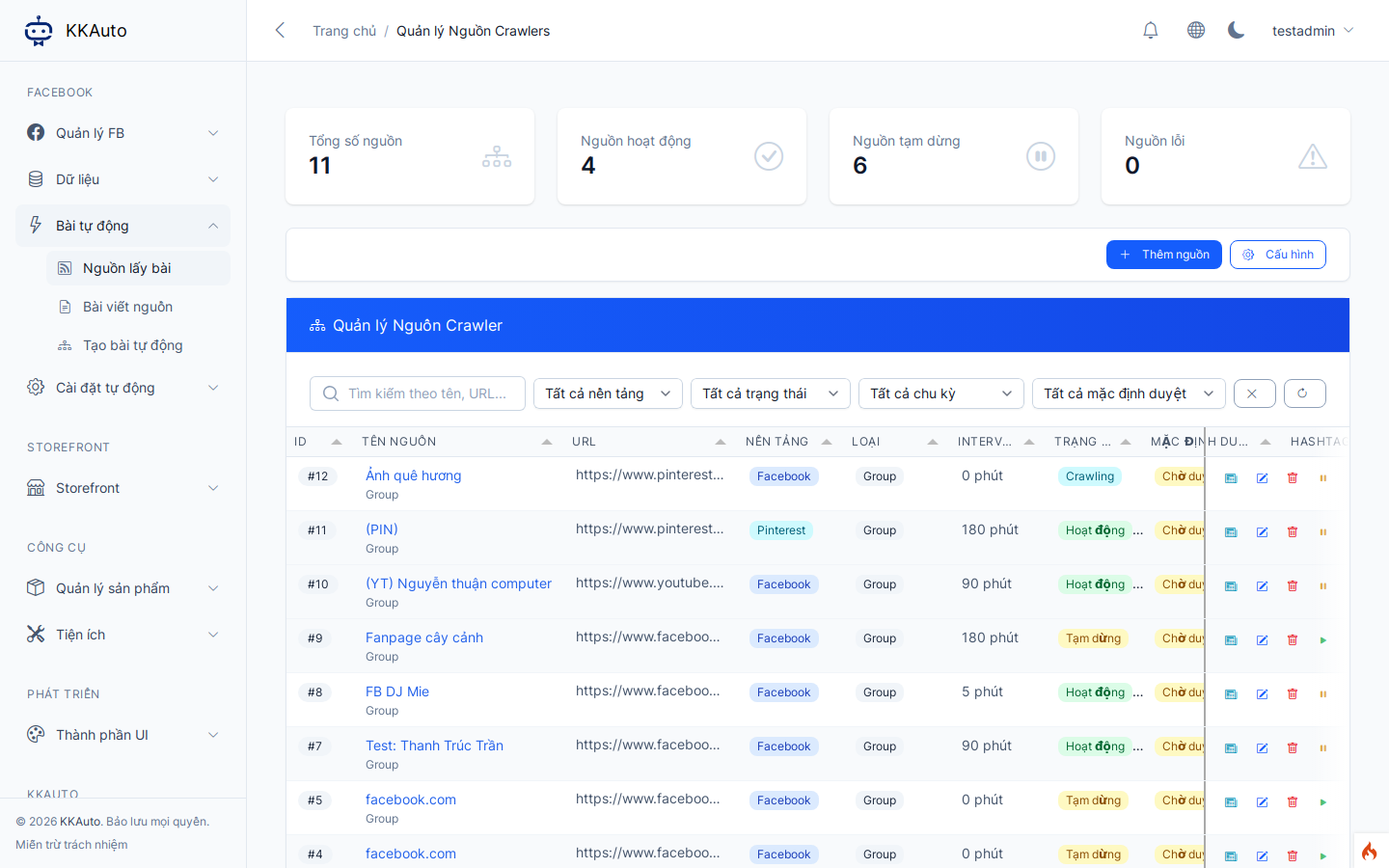
- Open Auto Posts > Source crawlers.
- Create new — enter the source URL and a memorable name.
- Attach the hashtag from step 0.
- Link a suitable Facebook account so the machine can run crawl tasks (follow on-screen help).
- Save and enable / run on schedule, or use on-screen crawl actions (for example crawl from the start if available).
- Keep the desktop app running automation so crawl tasks execute.
2. Source posts
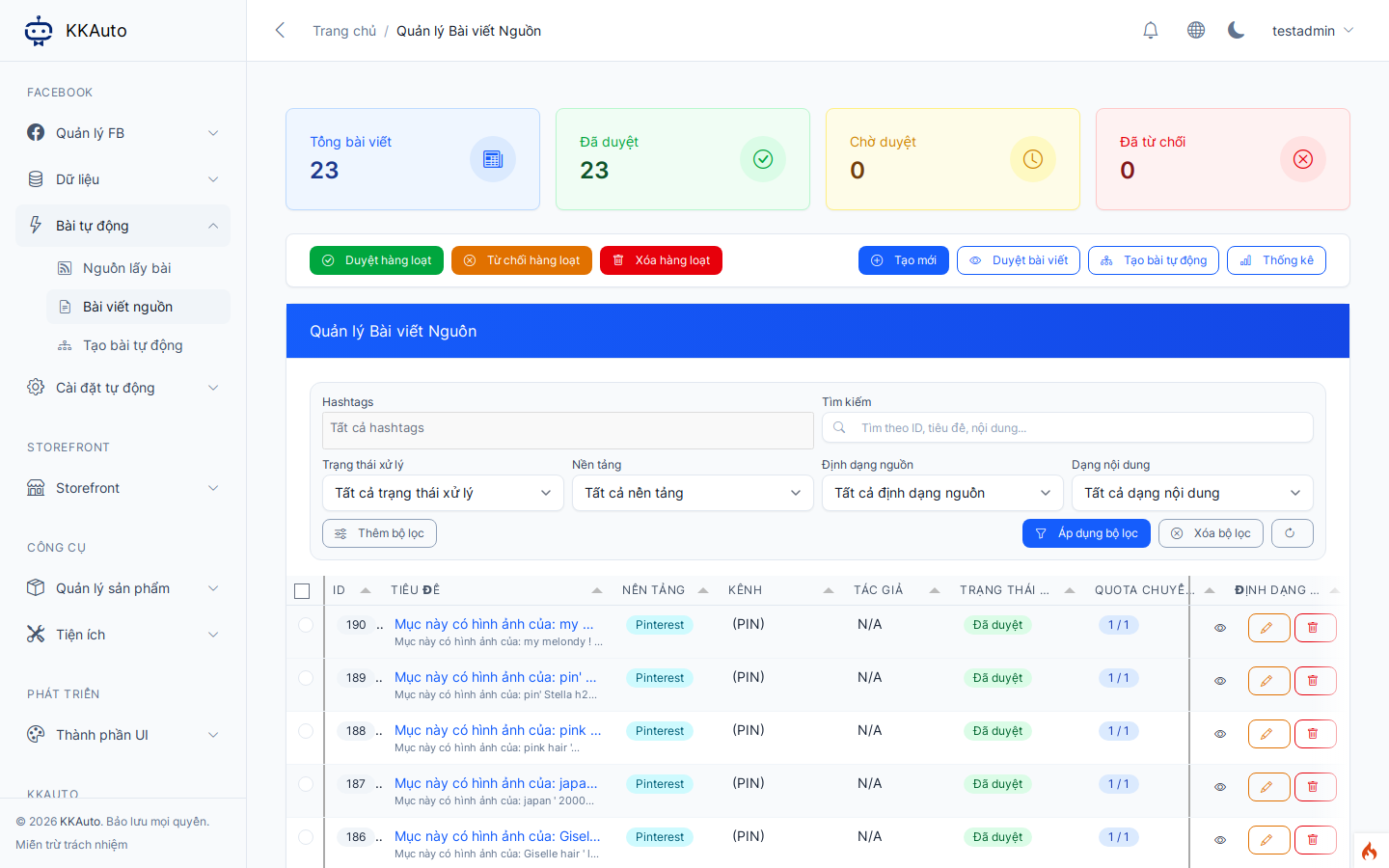
- Open Auto Posts > Source posts.
- Filter by hashtag (or by crawler) to see newly pulled posts.
- Review / approve posts that should enter FB post creation (statuses required on screen — usually approved / conversion-ready).
- Reject or skip unsuitable posts.
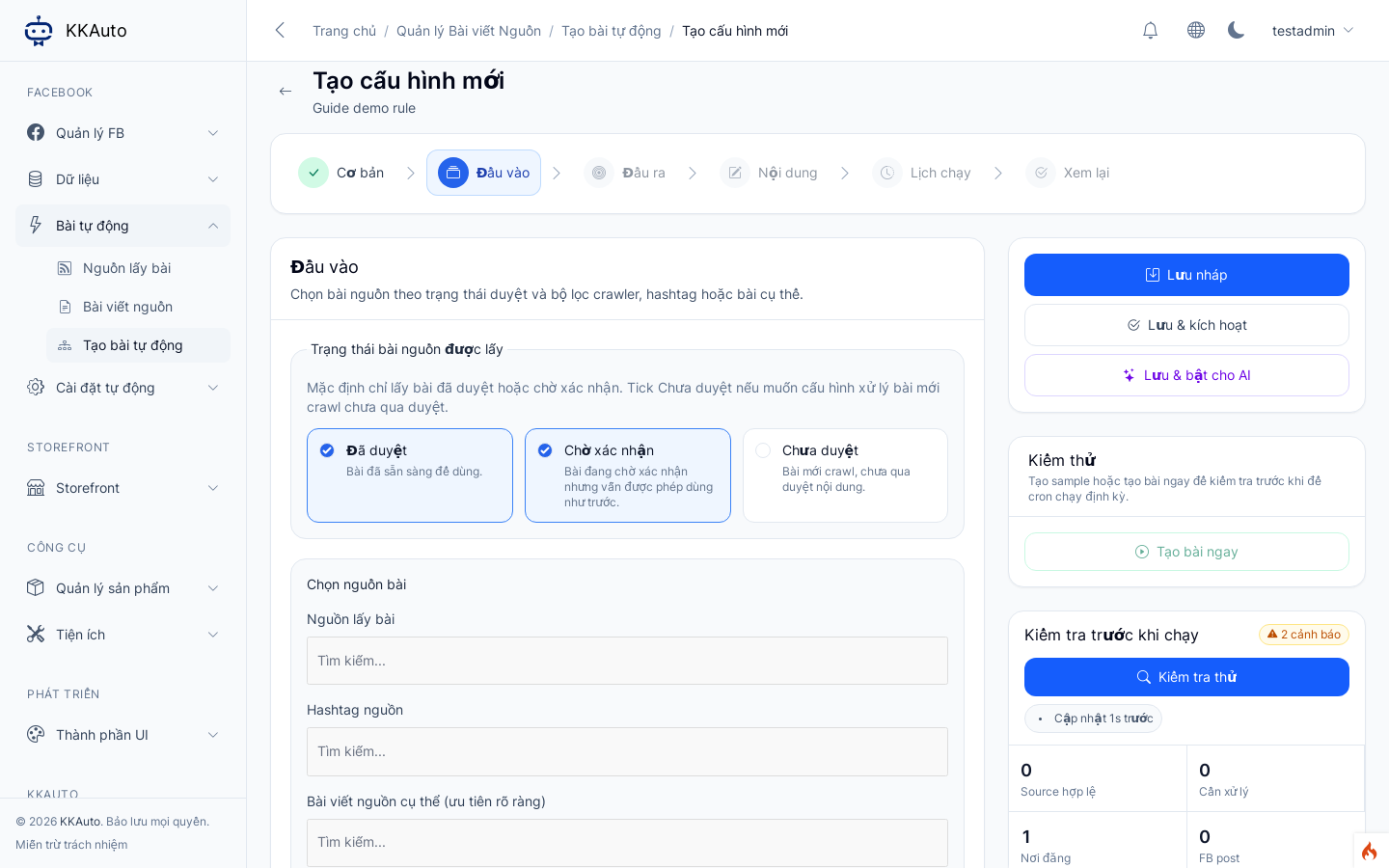
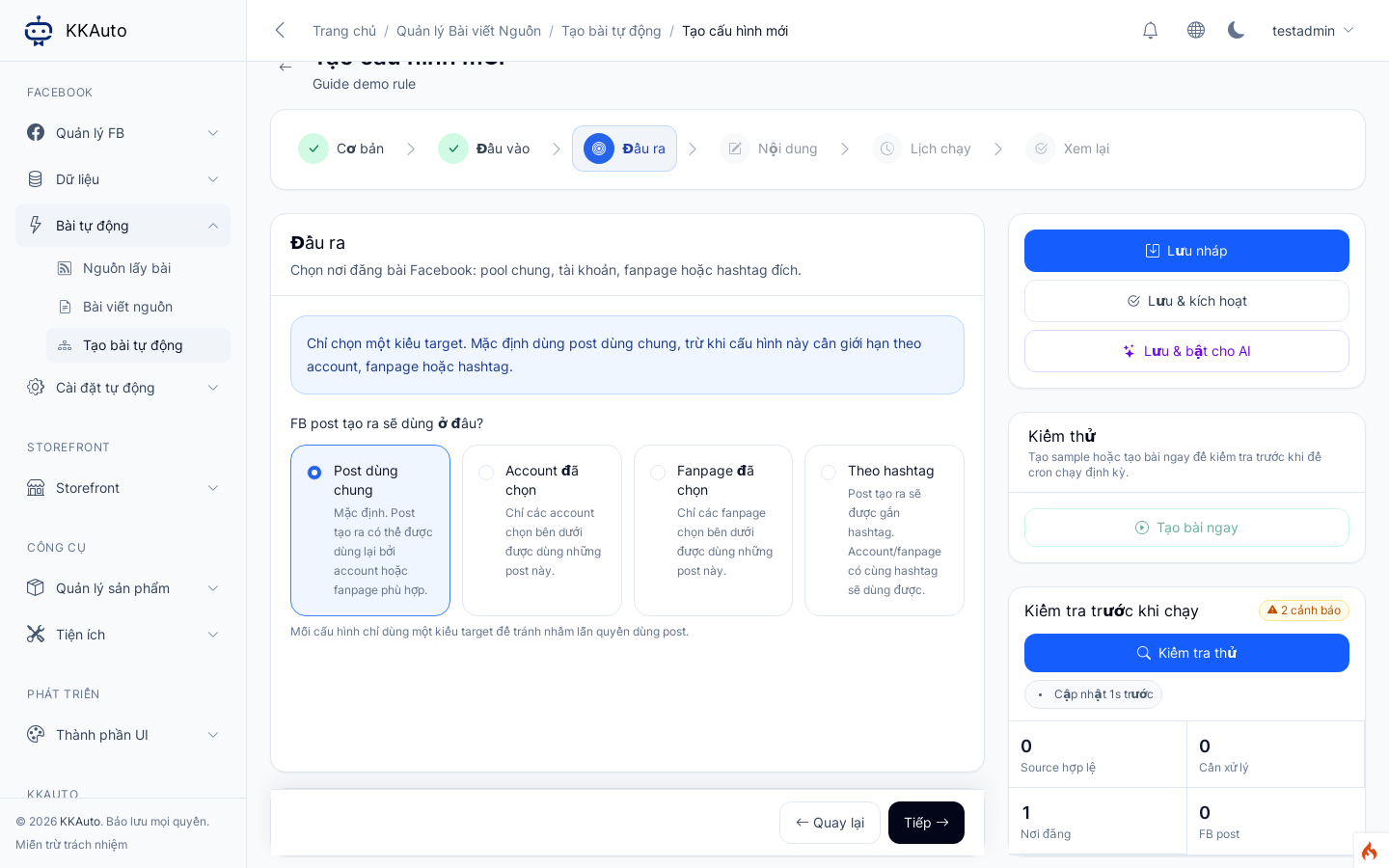
3. Create Auto Posts (source → FB Posts)
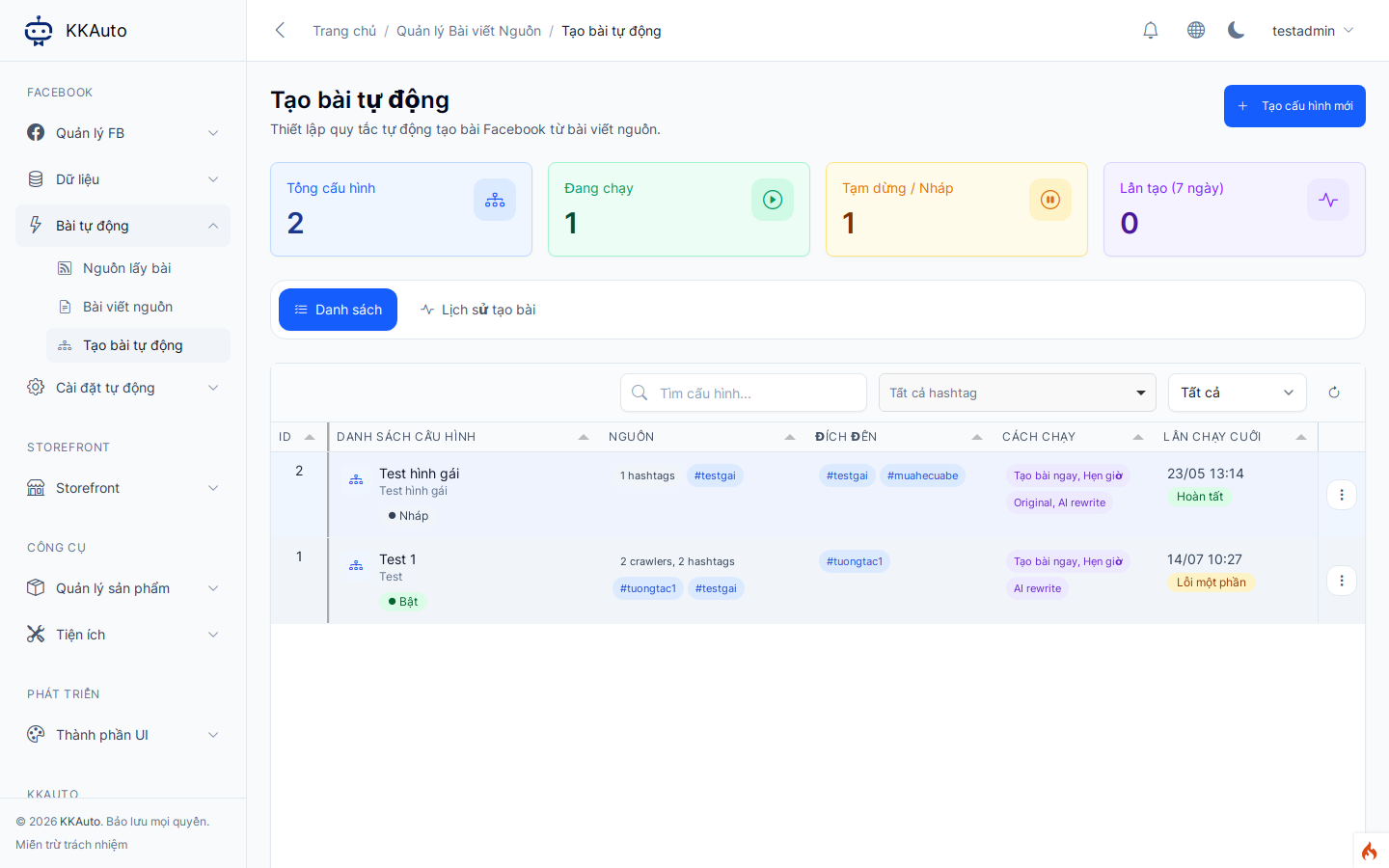
- Open Auto Posts > Create Auto Posts.
- Create a workflow — give it a clear name.
- Choose sources / filters for source posts (by hashtag or targets on the form).
- Configure output content (keep original or rewrite with AI — per form options).
- Ensure output hashtags match the hashtag from step 0.
- Set schedule / enable the workflow; use test / run manually if available.
- After a run, open Data > Posts, filter by the same hashtag — new posts should appear.
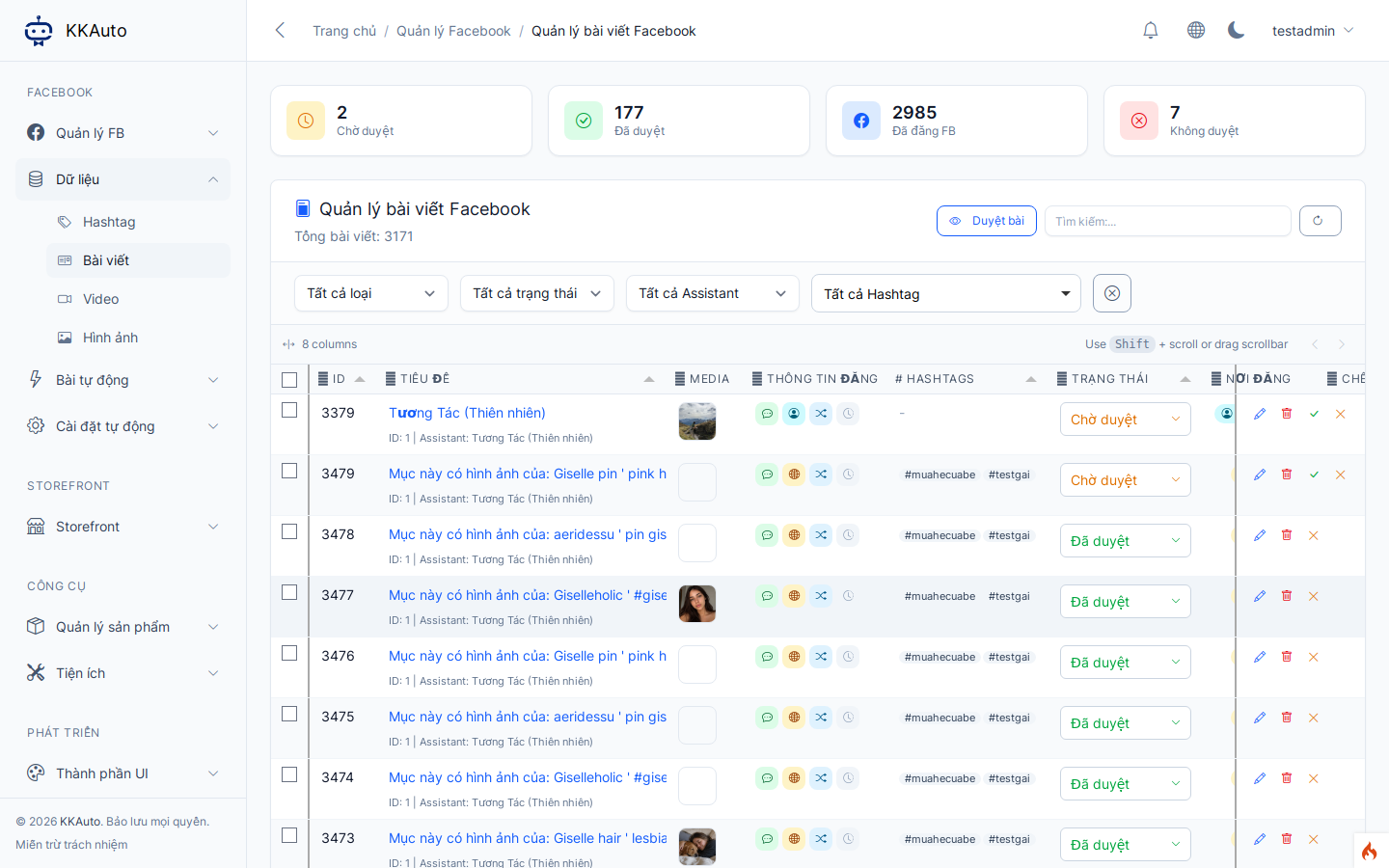
4. Check Posts (FB posts)
- Open Data > Posts.
- Filter by hashtag.
- Open post detail: if a View original tab exists, confirm the link back to the source post.
- Make sure posts are publish-ready (approved if the system requires review before pickup).
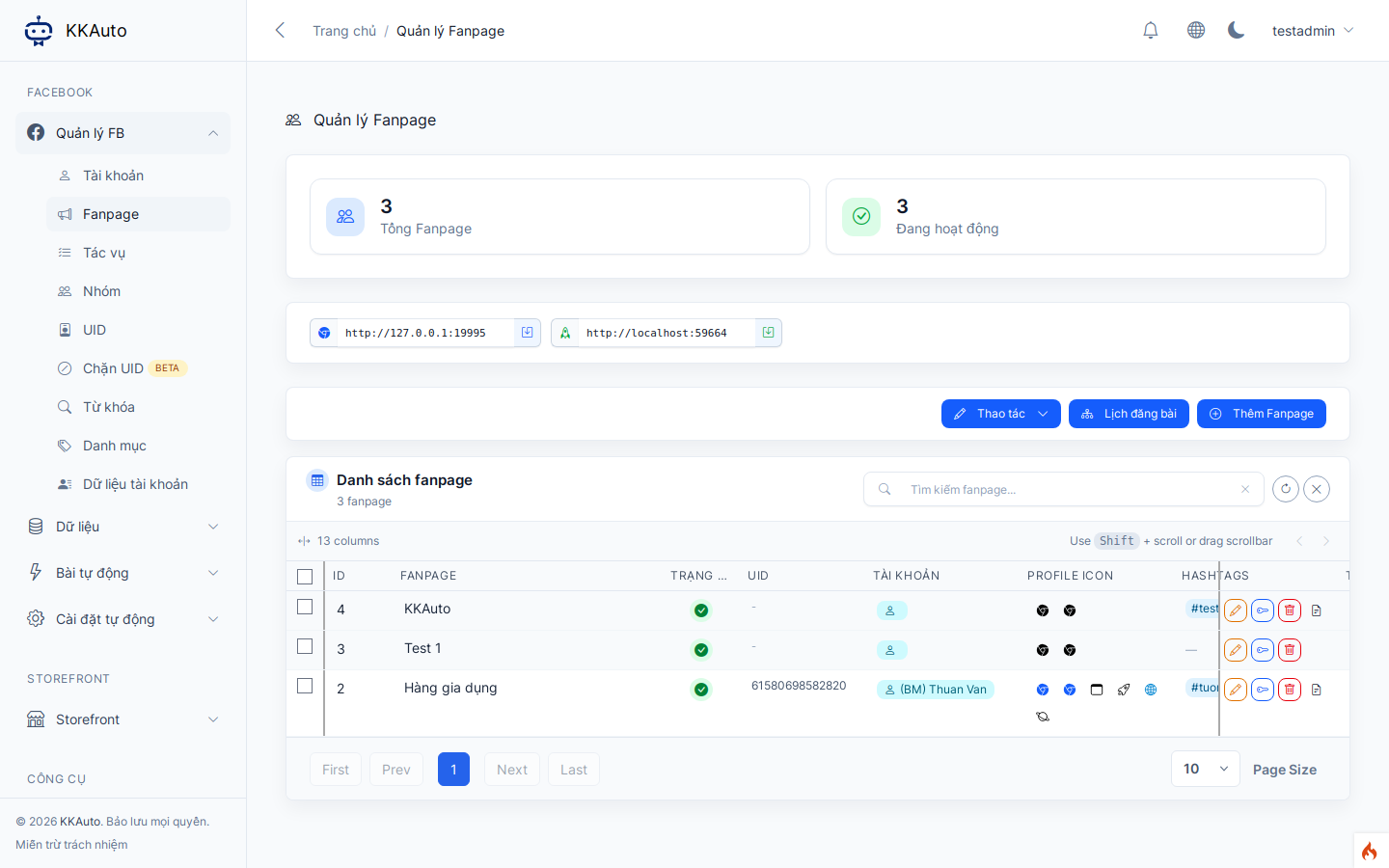
5. Fanpage + schedule by hashtag
- Open Facebook > Fanpages.
- Select the fanpage; attach the same hashtag (linked hashtags on the fanpage form).
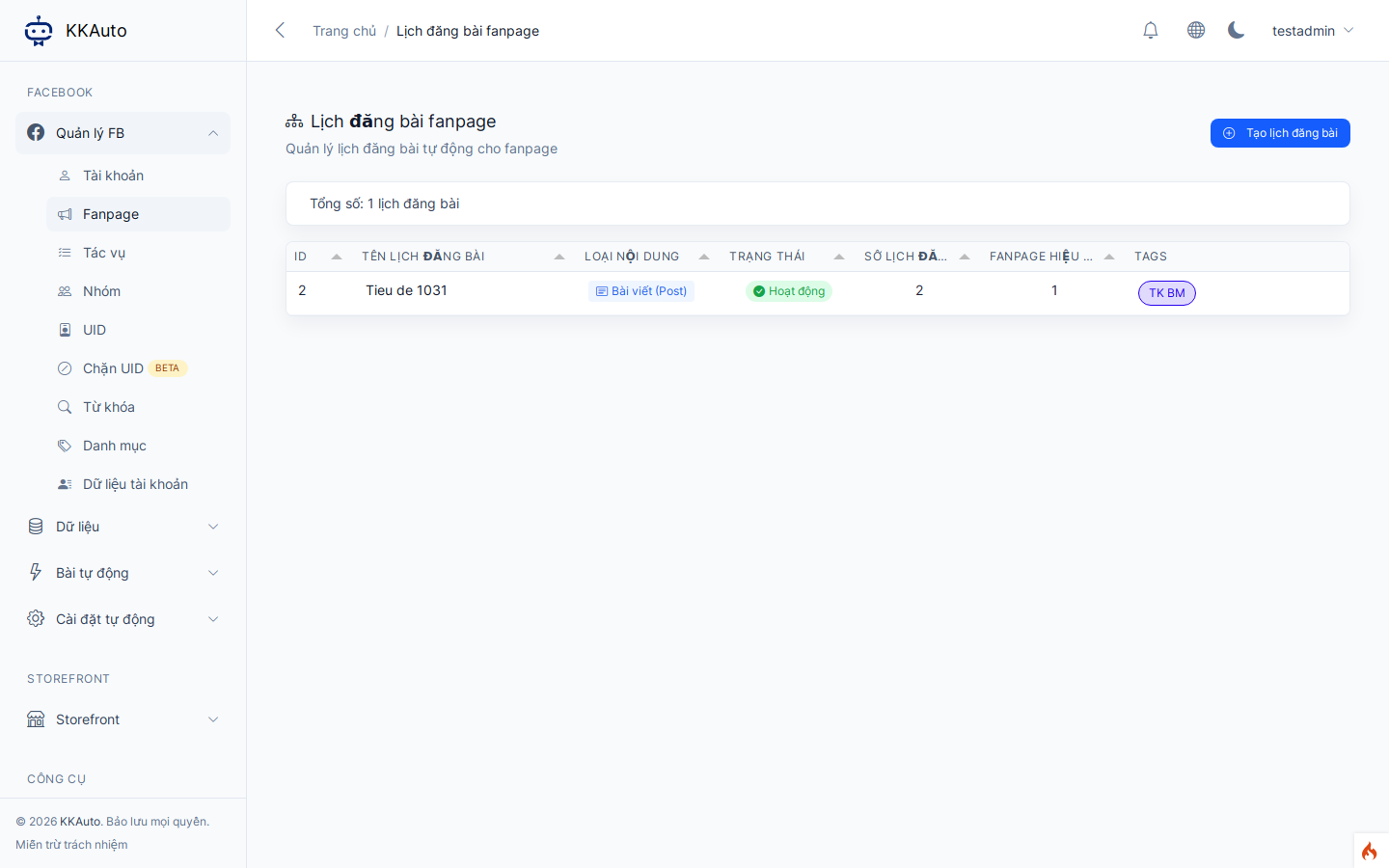
- Open Fanpage post schedule from the Fanpages screen (Post schedule / Fanpage post schedule — not in the main sidebar).
- Create or edit the schedule: choose fanpages (direct or by tag), set time windows / frequency per the form.
- Save and enable.
- On schedule, the Server creates publish tasks; posts are selected because fanpage hashtags match Post hashtags.
- KKAuto desktop app: connected and Start automation — see Run Automation.
- Monitor Facebook > Tasks (fanpage post type).
- Confirm the fanpage received posts for the hashtag theme.
Expected outcome
- Source posts appear under Source posts with the correct hashtag.
- Create Auto Posts produces Posts with the same hashtag (traceable to the original when available).
- Fanpage post schedule creates tasks; the machine publishes to fanpages tagged with that hashtag.
Common issues
| Symptom | Suggestion |
|---|---|
| No source posts | Crawler not running; automation off; wrong URL or linked crawl account |
| Source posts but no FB Posts | Workflow disabled / not run; source not approved; output hashtag mismatch |
| FB Posts exist but fanpage does not publish | Fanpage missing matching hashtag; schedule off; posts not publish-ready |
| Wrong theme / wrong source | Verify the same hashtag on crawler, workflow, posts, and fanpage |
| Tasks exist but nothing posts | App not connected / automation off; browser profile or fanpage link issue |
See also
- System capabilities
- Automatic fanpage posting — AI Posts flow (not crawler)
- AI Posts
- Monitor Tasks
- Run Automation