

5/29/26About 1 min
Run Automation
Purpose
Enable automation mode so the machine receives tasks from the Server, adjust the number of parallel tasks, and monitor while running.
Once you are Connected and have clicked Start Automation, every task (opening a browser, posting, interacting…) is handled fully automatically by the system — no manual action is needed per task. See How KKAuto Works (steps 3 and 4).
Before you start
- Desktop app is connected to the Server.
- Browser configured; profiles linked to accounts.
- Tasks are pending on the website, or automation has already created tasks.
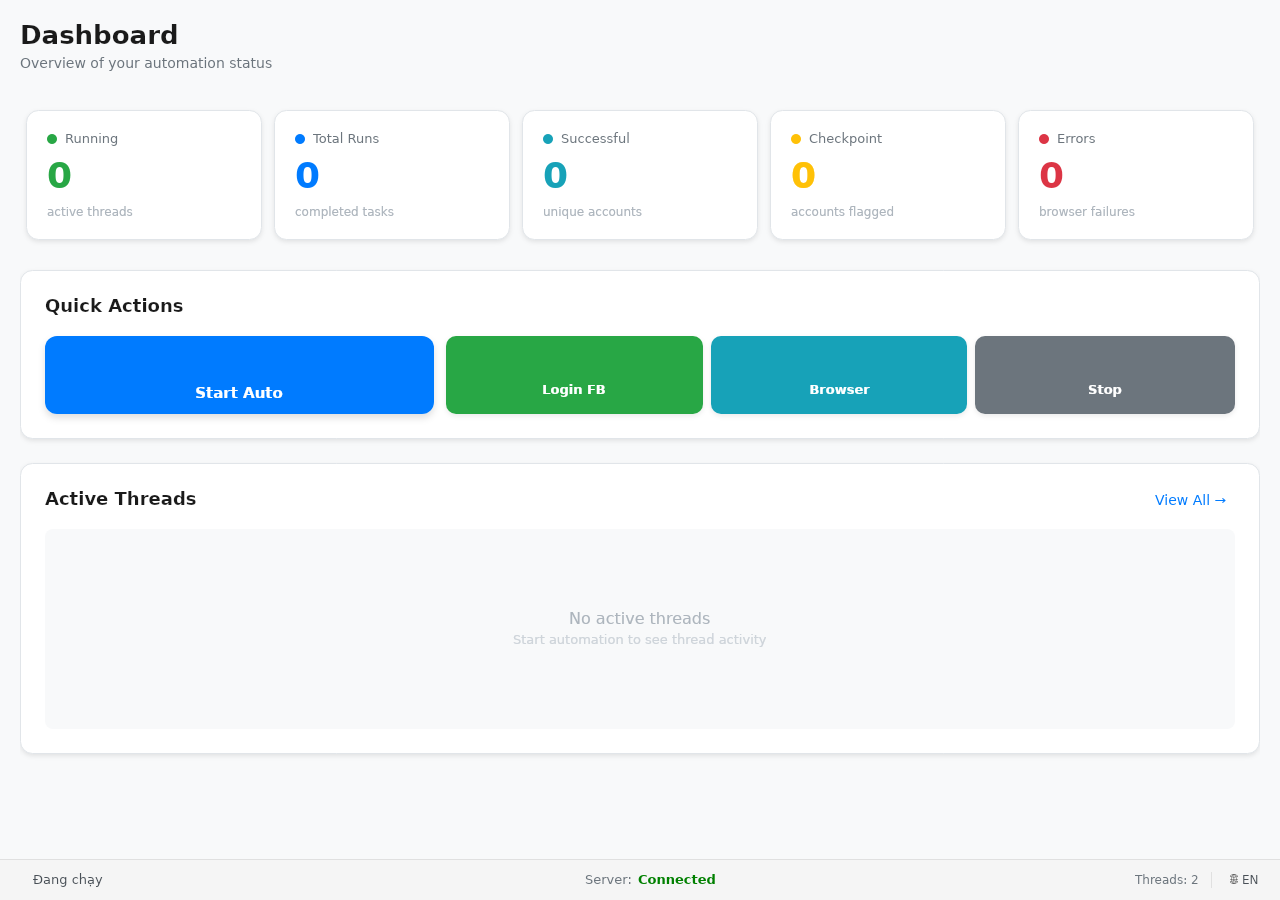
Steps
- Confirm the Connected status.
- Set the number of parallel tasks:
- Start low (1–2) on a weak machine or on first run.
- Increase gradually as the machine proves stable.
- Click Start Automation — the machine is now ready to receive work from the Server.
- Open Facebook > Tasks on the Management Website — pending tasks move to running.
- Monitor the monitor / log screen in the desktop app (if available).
- To stop: click Stop Automation — running tasks may complete or stop depending on the version.
- Before shutting down the machine: stop automation first, then close the application.
Expected outcome
Tasks on the website are being processed; account statuses update; no repeated errors on the same account.
Common issues
| Symptom | Suggestion |
|---|---|
| Automation started but no tasks | No pending tasks; accounts not ready; check configuration |
| Machine is slow / lagging | Reduce the parallel task count |
| Repeated errors on the same account | Stop automation; fix the browser / re-login; see troubleshooting |