

5/29/26About 1 min
Antidetect Browser for Each Account
Purpose
Configure a supported browser application in KKAuto so each Facebook account runs in its own isolated browser profile — GPMLogin, GPMGlobal, Hidemium, or Pionlogin.
Before you start
- One supported browser application is installed on the same machine as KKAuto.
- You have created profiles in that application and linked them to accounts under Facebook > Accounts.
Supported applications
| Name | Notes |
|---|---|
| GPMLogin | Most common; requires the GPM application to be running on the machine |
| GPMGlobal | Available depending on your license |
| Hidemium | Follow KKAuto's instructions |
| Pionlogin | Follow KKAuto's instructions |
Steps
- Install and open the browser application; create a profile for each Facebook account.
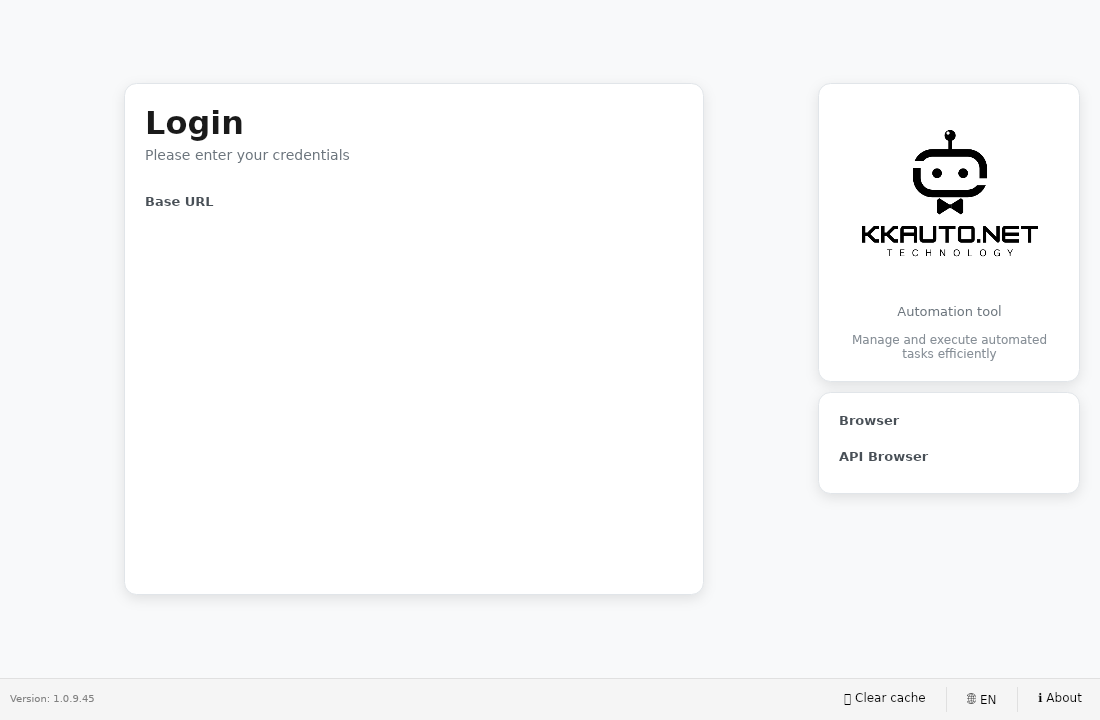
- In the KKAuto app, open Settings / Browser (menu name may vary by version).
- Select the browser type matching the application you are using.
- Enter the connection details following the on-screen instructions (token, installation path…).
- Click Test if available — confirm the profile list appears.
- On the Management Website, under Facebook > Accounts, select the same profile as on the machine.
- Open a profile manually to confirm the browser launches correctly before clicking Start Automation.
Expected outcome
KKAuto detects the profiles; accounts on the website are linked correctly; tasks open the right browser when they run.
Common issues
| Symptom | Suggestion |
|---|---|
| No profiles visible | Browser application not running; incorrect connection details |
| Task opens wrong profile | Fix the link under Accounts |
| Browser error on an account | Re-login to Facebook in the profile; update the browser application |