

Getting familiar with KKAuto
Purpose
Use this page when you have just received the Management Website URL and login credentials, do not yet know which menu to open first, and need a day-one path to learn the system — before diving into individual features.
If you already understand the main areas and only need the install / connect checklist, go to Quick Start.
What you receive / what to prepare
| From KKAuto (or your admin) | Prepare on your side |
|---|---|
| Management Website URL | A Windows machine if tasks run on your computer |
| Website login account | A supported antidetect browser (see Antidetect Browser) |
| (Depending on plan) KKAuto desktop installer | Facebook accounts / fanpages you are allowed to operate |
Skim How KKAuto Works so you know the roles of the Management Website and the desktop application.
Map of main areas on the Management Website
Labels below match the Vietnamese menu on the Management Website. Some items may differ by account permission or service plan.
| On the menu | What it is for |
|---|---|
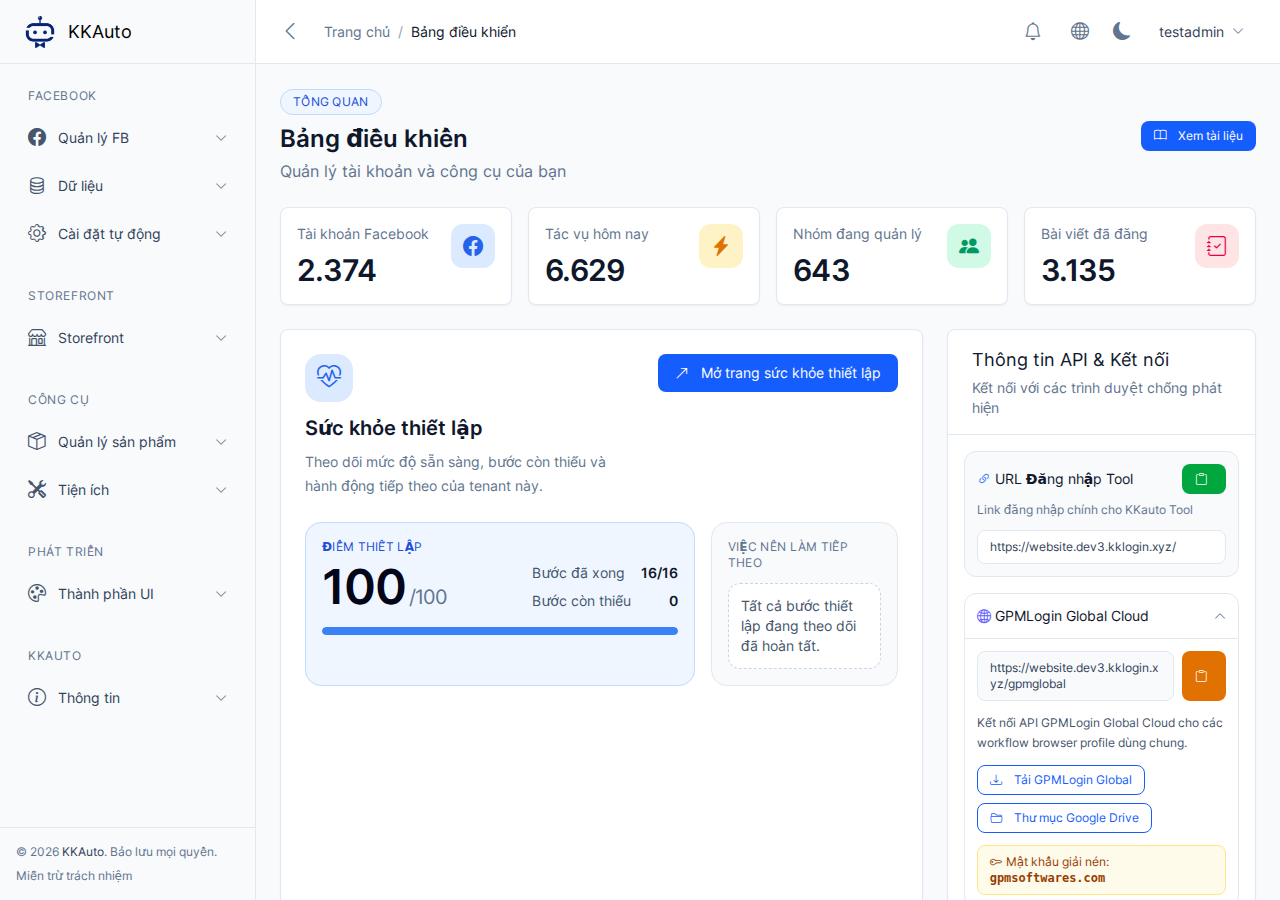
| Dashboard | Operations overview; open Setup Health to see what is still missing |
| Setup Health (from Dashboard) | Setup score, completed / missing steps, what to do next — details |
Facebook > Accounts (Tài khoản) | Add, check status, manage Facebook accounts used by tasks |
| Facebook > Fanpage | View and select fanpages you are allowed to use |
Facebook > Tasks (Tác vụ) | Monitor task status (pending / running / done / error) |
| Automation settings > FB settings | Interaction levels, time windows, automation config — System Configuration |
| Automation settings > AI Posts | AI-generated post content (when you use fanpage / AI posting) |
KKAuto > Support (Hỗ trợ) | Support contact and documentation |
Day-one path
Complete steps in order; finish each at a basic level before moving on.
- Log in to the Website — open the provided URL and sign in with your Website account.
- Open Setup Health — on the Dashboard, review the score and what to do next; follow on-screen suggestions. See Setup Health.
- Facebook accounts — go to Facebook > Accounts, add or verify ready accounts. See Facebook Accounts.
- Basic configuration — open Automation settings > FB settings, set levels / time windows that fit your use. See System Configuration.
- Pick one first capability — do not enable every feature on day one. Choose one path (profile posts, fanpage + AI, crawled sources, group comments…) under System capabilities and follow that guide.
- Install the desktop app and start automation — full checklist: Quick Start. Summary: install KKAuto → connect to Server → configure browser → Start Automation.
- Check tasks — on the Website, open Facebook > Tasks; when the machine is running, tasks move from pending to running. See Monitor Tasks.
Follow Setup Health first
If you are unsure which menu to open, always return to Setup Health — the system already suggests priority steps for your tenant.
When you are “ready”
You are familiar enough to operate when:
- The Setup Health score / steps show core items done (or you are following the remaining suggestions).
- At least one Facebook account is in a ready state.
- The desktop app shows Connected and automation has started.
- Under Facebook > Tasks you see tasks being created and (when the schedule hits) moving to running.
Then expand gradually via System capabilities — you do not need to configure every menu on day one.
Safety and support
- Never share passwords, verification codes, proxy credentials, or unredacted screenshots with third parties.
- For help: KKAuto > Support on the Management Website.
- Common issues: Troubleshooting · FAQ.