
How KKAuto Works
Purpose
Understand who does what: the Server (Management Website) controls everything; the desktop application on your computer carries out the work — no need to manually assign tasks to each machine.
Three main components
| Component | Role | Where you interact |
|---|---|---|
| Server (Management Website) | Central hub: configure accounts, automation, create and schedule tasks, view results | Browser — Management Website |
| Desktop application | Connects to the Server, receives tasks, opens browser profiles, reports completion or errors | KKAuto app installed on Windows |
| Antidetect browser | Each Facebook account runs in a separate browser profile (GPMLogin, GPMGlobal, Hidemium, Pionlogin…) | Installed on the same machine as the KKAuto app |
The Server does not replace installing a browser on your computer. The desktop app does not replace configuring accounts and automation on the Management Website.
How it works (illustrated)
Setup Health on the Management Website
After logging in, open Dashboard → Setup Health. This page shows which configuration steps are done, what is still missing, and what to do next — no need to memorize every menu item. Details: Setup Health.
Step-by-step explanation
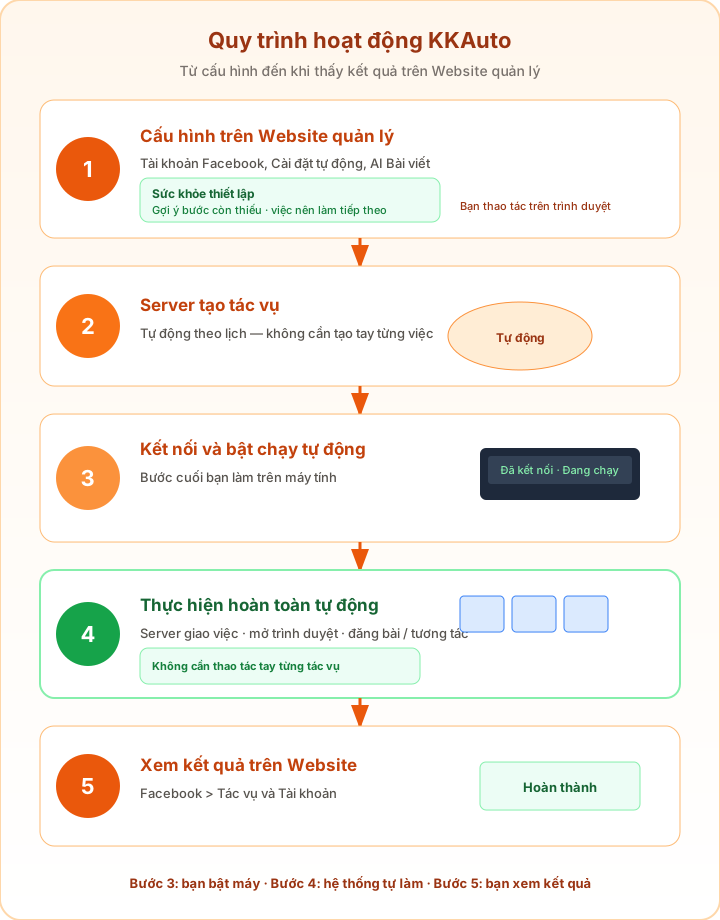
- On the Management Website, you add Facebook accounts and configure the system (interaction levels, AI Posts, schedules…). Start with Setup Health so the system can suggest what is still missing.
- The Server automatically creates or schedules tasks according to your configuration — you do not need to create the same tasks manually every day.
- On your computer, you log in to the KKAuto app, wait for Connected, then click Start Automation. This is the last manual step you take on your computer to get the system ready to receive work.
- Fully automatic: The Server dispatches tasks to connected machines; the app automatically opens the correct browser profile for each account and performs the work (posting, interactions…). You do not need to click through each task or manually operate Facebook for every action.
- Results appear on the Management Website under Facebook > Tasks and Facebook > Accounts — you only need to check in and handle errors.
| Step | Who | Action |
|---|---|---|
| 1 | You (Website) | Setup Health, add accounts, configure automation |
| 2 | Server (automatic) | Creates tasks on schedule |
| 3 | You (computer) | Connect + Start Automation |
| 4 | System (automatic) | Receives tasks, opens browser, runs tasks |
| 5 | You (Website) | Review task / account status |
Requirements for tasks to run
- Accounts are in ready status (working normally, no manual error resolution needed).
- System configuration is complete (levels, AI Posts, schedules…) for the type of work you want.
- The desktop app is connected and automation has been started; browser profiles are working correctly.
- The number of parallel tasks matches your machine's capacity — increase gradually if the machine is slow.
Expected outcome
You understand: configure on the Management Website, once connect and start automation on the computer — everything else (task dispatch, opening browsers, executing tasks) runs automatically; you monitor results on the Management Website.