

5/29/26About 1 min
Connect to Server
Purpose
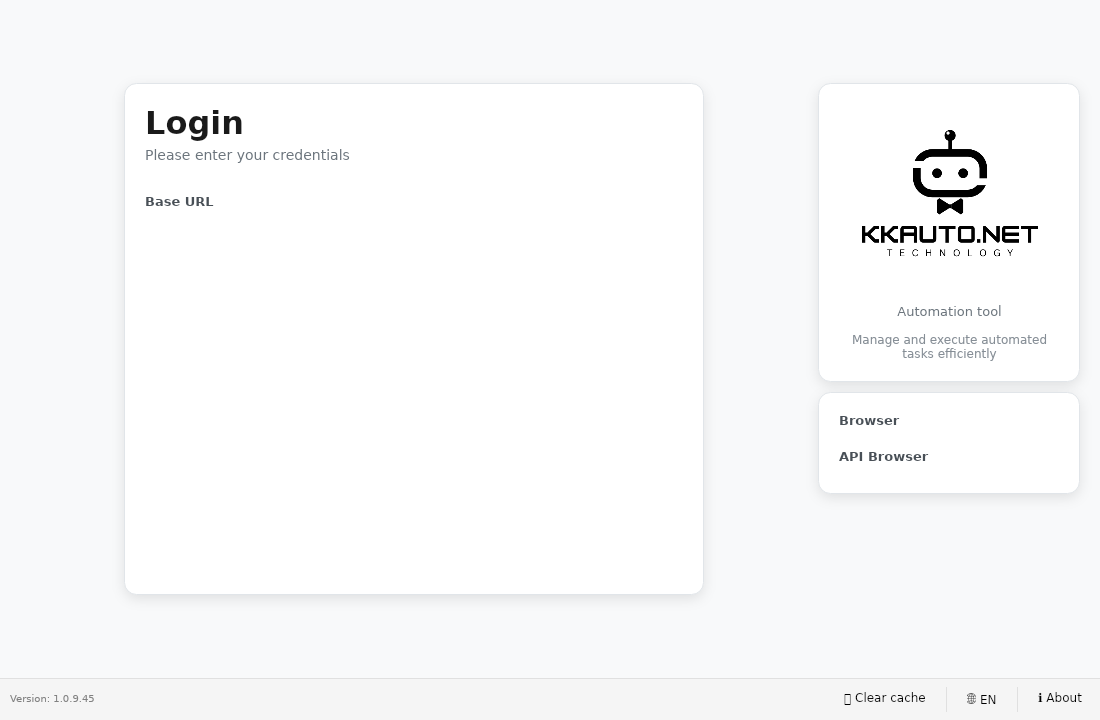
Log in to the KKAuto desktop app using the same credentials as the Management Website and maintain a Connected status. Then click Start Automation — from that point on, receiving tasks, opening browsers, and executing each task is fully automatic (see Run Automation).
Before you start
- The app is already installed on the machine.
- You have the website address (e.g.
https://your-name.kkauto.net) and your login credentials.
Steps
- Open the KKAuto application on your computer.
- Enter the website address — use the exact address KKAuto provided (include
https://, do not append an admin path). - Log in with the same email and password as the Management Website.
- Wait for the Connected status (or equivalent message in the interface).
- Note the machine name (if shown) when using multiple computers.
- Keep the application open while you need to receive tasks; if the connection drops, wait for reconnection or restart the app.
Warning
Entering the wrong website address (missing https, wrong domain) is the most common reason the app fails to connect.
Expected outcome
The app shows Connected; on the Management Website you can see the machine listed as online (if your plan includes a monitoring screen).
Common issues
| Symptom | Suggestion |
|---|---|
| Cannot connect | Check the address, network, and firewall; re-login |
| Login fails | Reset your password on the website; see Troubleshooting |
| Frequent disconnections | Stable network required; prevent the machine from sleeping while tasks are running |